

See what your child is learning.
The Parent/Teacher area shows how your child is doing, what they can do now, and what to talk about next. It is calm, clear and just for grown-ups.
 Download on the App Store
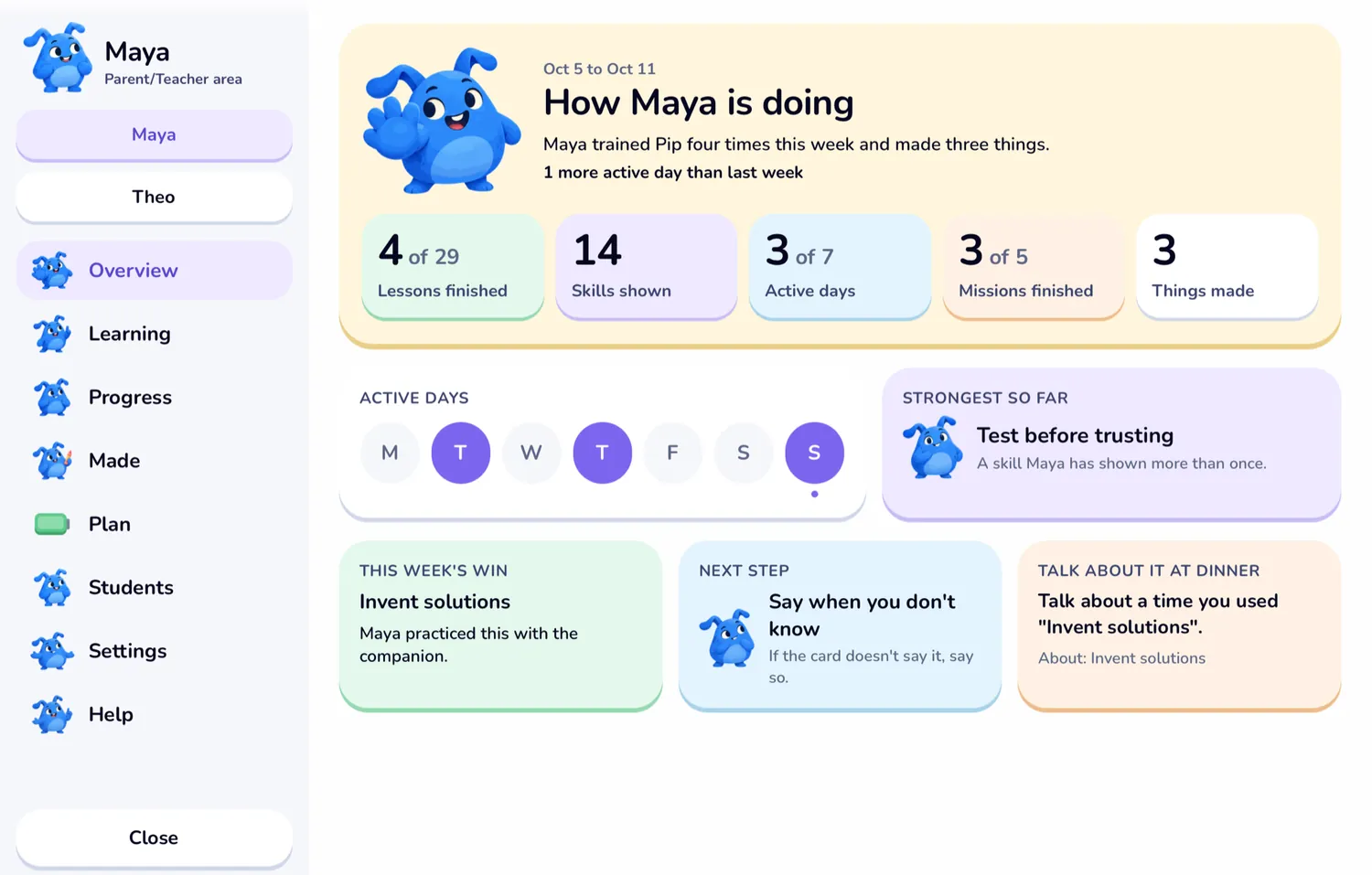
Overview: how your child is doing, in one look.
The first page opens with this week in a few big numbers: lessons finished, skills your child has shown, days they practiced, missions finished and things they made.
Under the numbers are four short cards: the skill they are strongest at so far, a win from this week, one next step, and a question to ask at dinner.
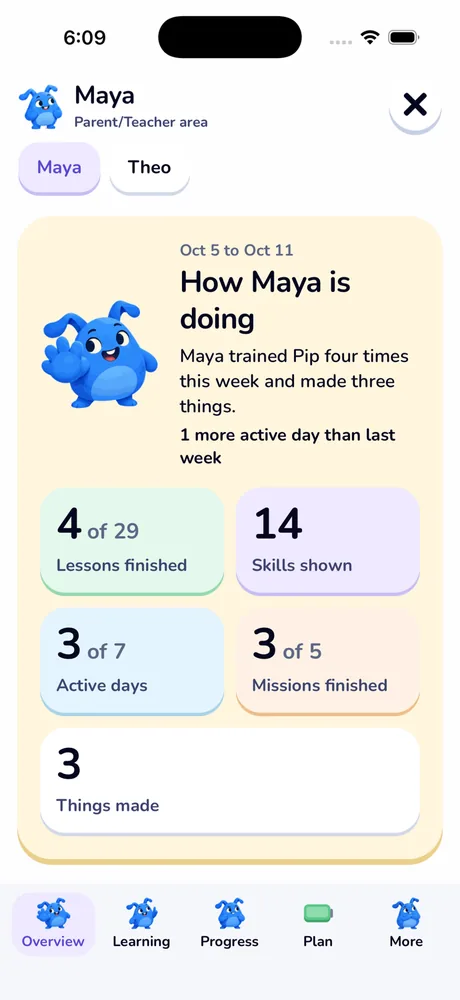
A new child starts with a hello, not a row of zeros.
Before your child has done anything, the Overview says they are just getting started and points to a first lesson. It fills in as they learn.
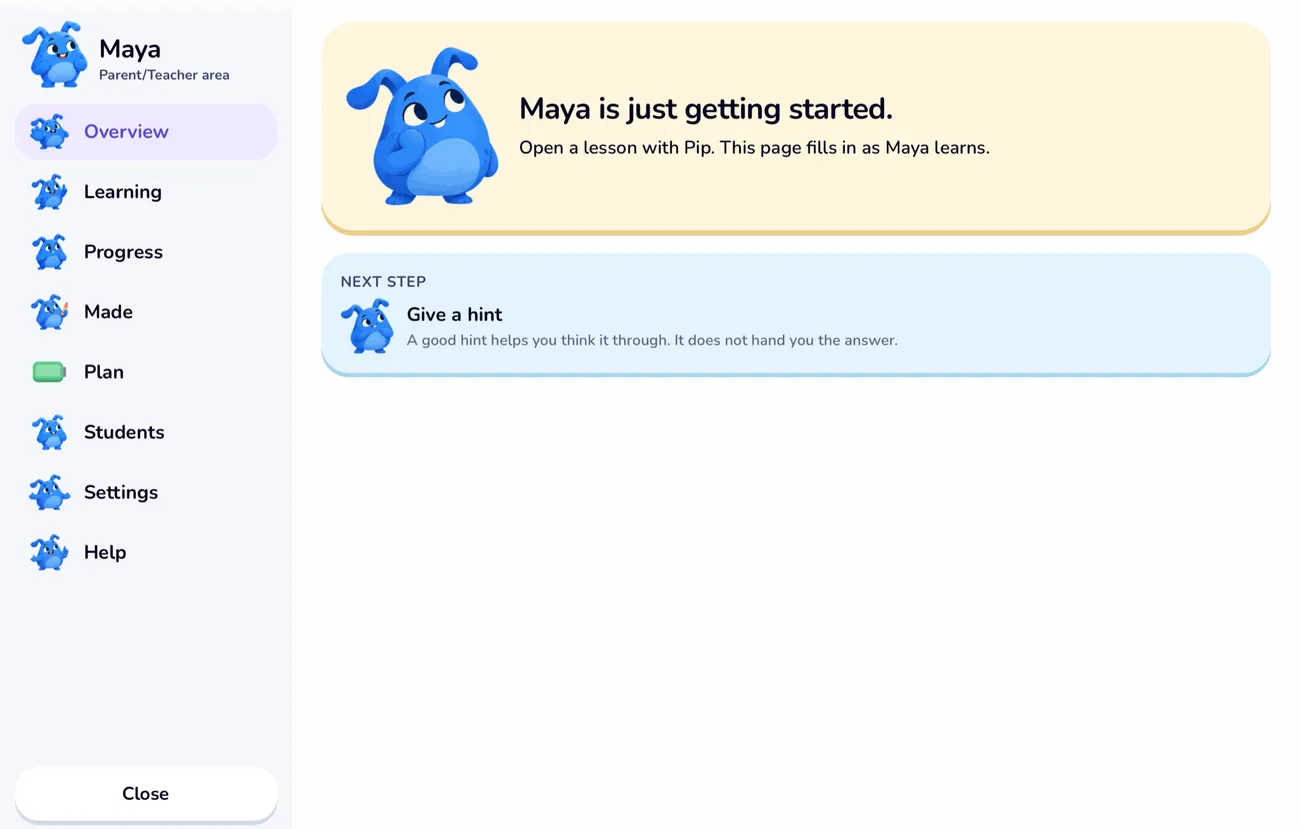
Learning: exactly what your child is working on.
Every skill your child has practiced is in one list. They are sorted into skills your child has shown so far, skills they are getting the hang of, and skills that are ready to try.
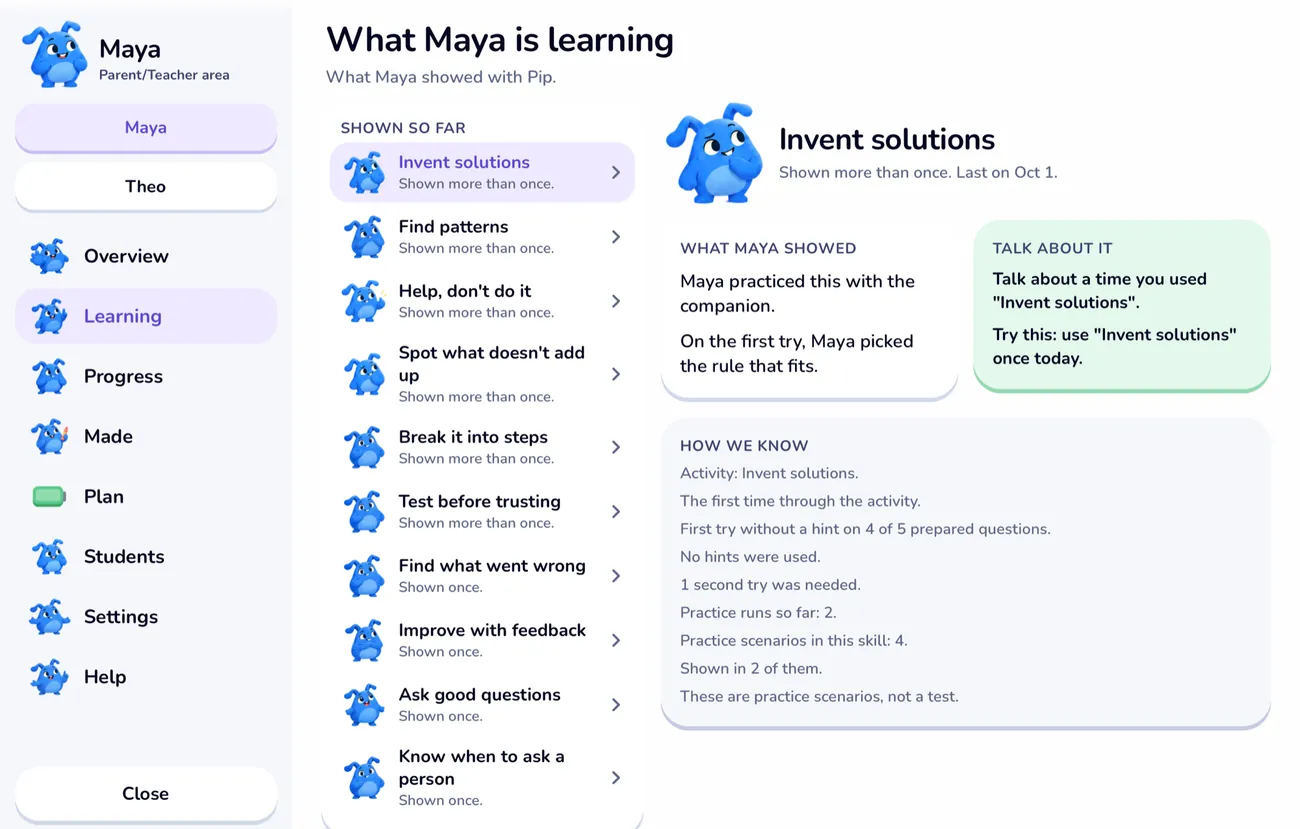
Tap a skill to see what your child showed in plain words, a way to talk about it together, and how we know. How we know lists the practice behind it, such as how many prepared questions they answered on the first try without a hint. It says so plainly: these are practice scenarios, not a test.
Progress: watch it add up.
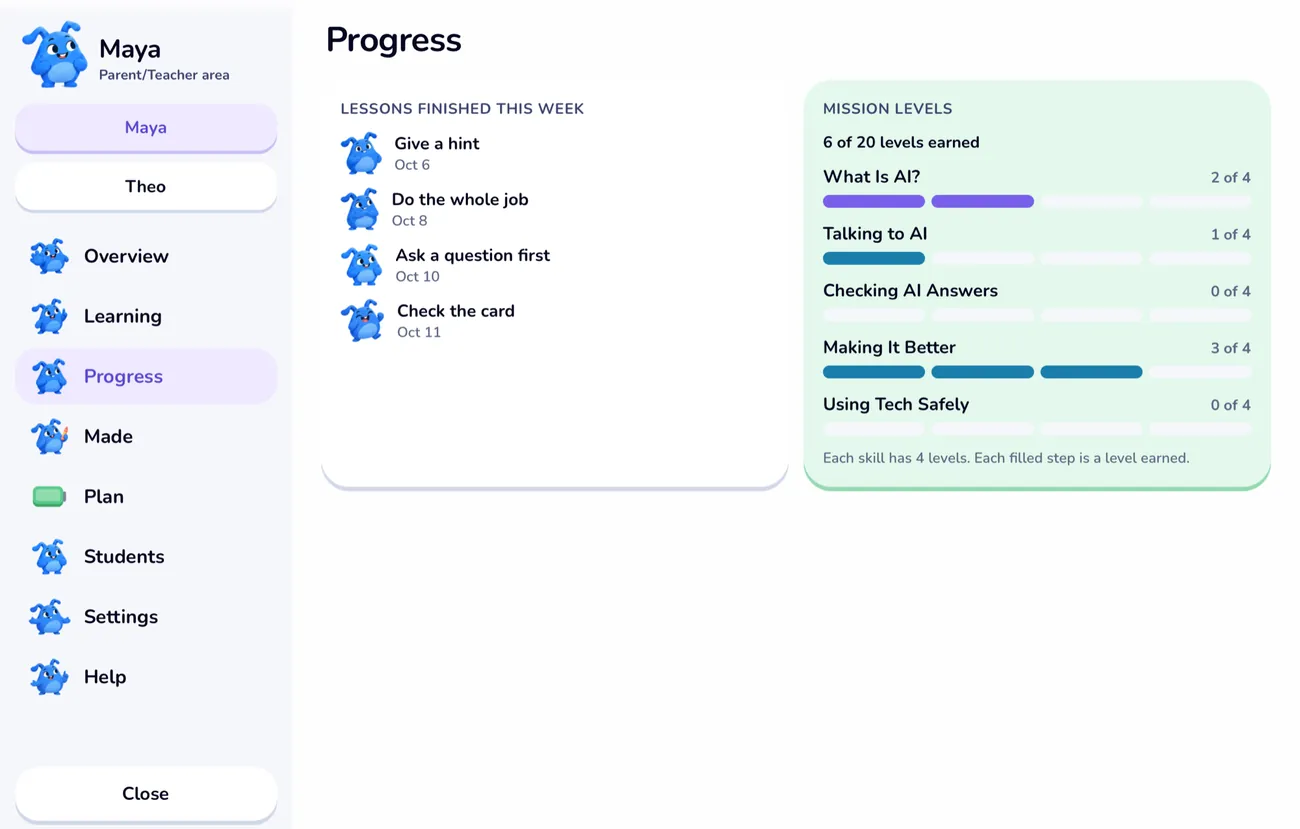
See the lessons your child finished this week, with the days they did them.
Missions have levels. Each mission skill has four, and every filled step is a level earned, so you can see where your child has started and what is still ahead.
Made: everything your child created.
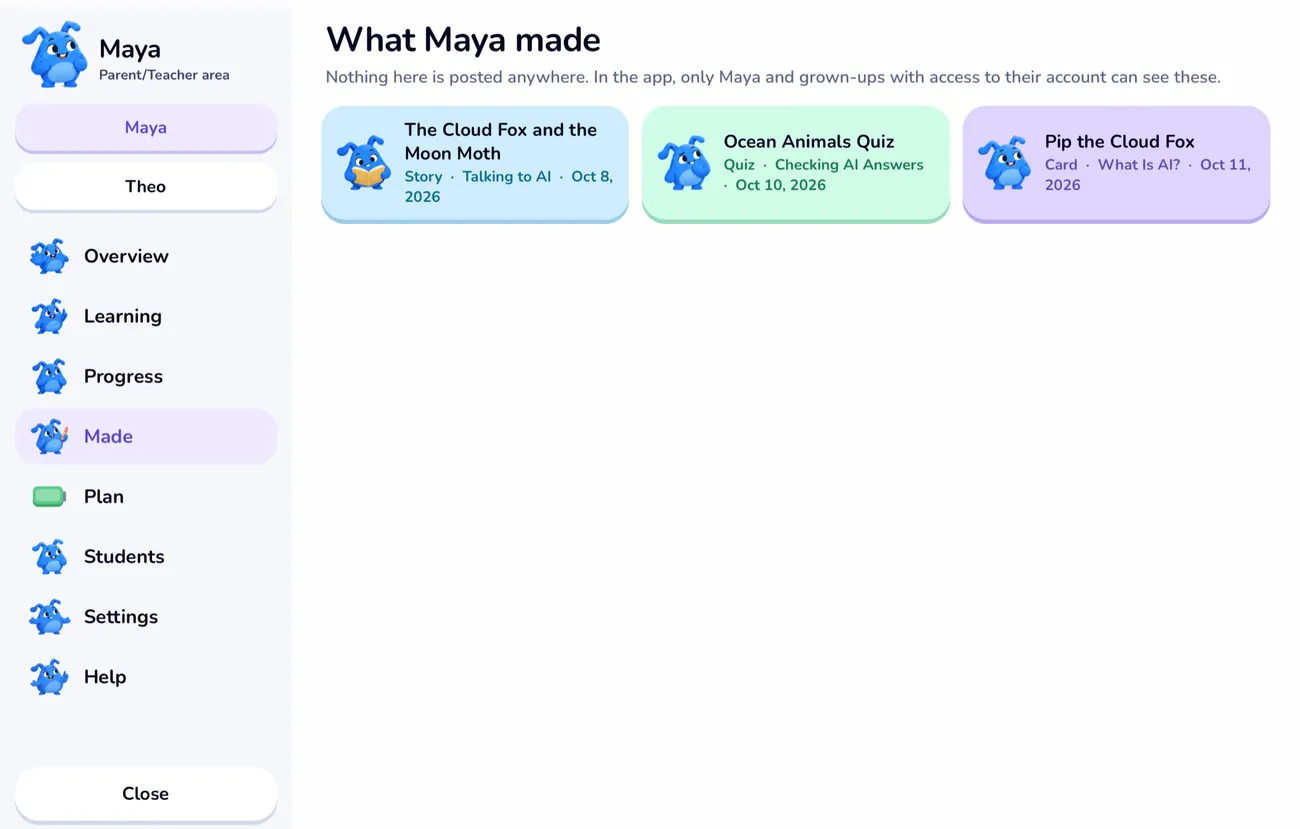
Stories, quizzes and cards your child made are kept here, each with the skill it came from and the date.
Nothing here is posted anywhere. In the app, only your child and grown-ups with access to their profile can see what they made.
Students: more than one child? See everyone at a glance.
Switch between children from the top of the area. The Students page shows when each child last played, how many missions they finished and how many badges they earned, and it opens that child's learning report.
The area is called Parent/Teacher on purpose. If you look after more than one child, such as a teacher or a tutor, the same pages are there for each of them.

Plan, Settings and Help are one tap away.
 Plan. See the plan and how much battery is left, choose your family's time zone for recharges, and manage the plan.
- Settings. Turn reminders on or off, and delete the account if you ever want to.
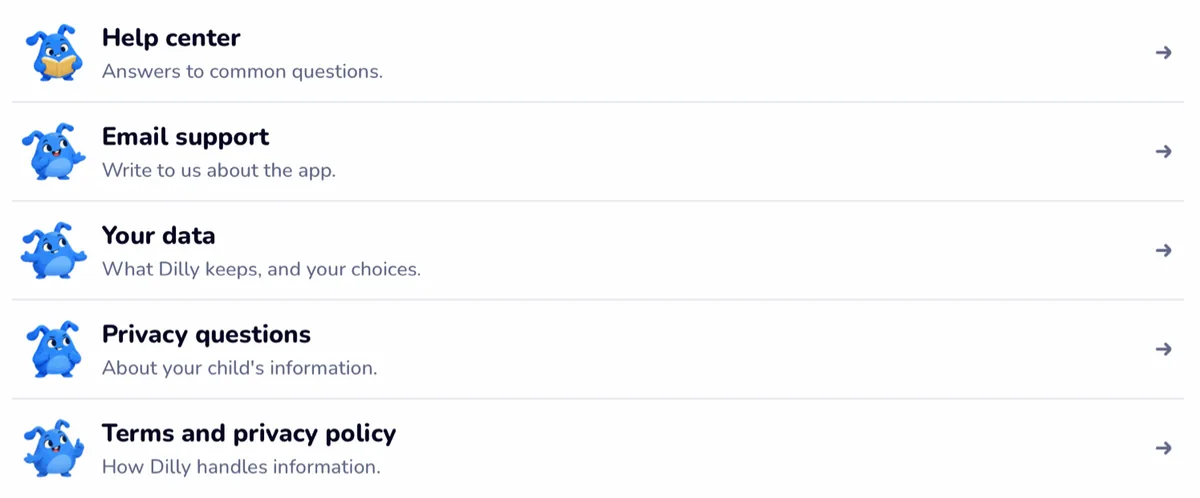
- Help. The help center, email support, what Dilly keeps and your choices, privacy questions, and the terms and privacy policy.
Made for grown-ups, and kept out of a child's way.
A check on the phone keeps a child who picked up the phone out of these pages. It is a check on the phone, not a lock on the account. Changing a child's profile, saying yes to consent and deleting a profile still need the account password typed again.
- Face ID, Touch ID, the phone's passcode or a number puzzle
- No ads
- Your child never sees these pages
- Not a test score
There is no AI in Dilly. Everything your child sees was written in advance, and nothing your child types is sent to an AI service.

Questions about the Parent/Teacher area.
Short, honest answers. Anything we are not sure of says so.
Who can open the Parent/Teacher area?
A grown-up. It sits behind a check on the phone: Face ID, Touch ID, the phone's passcode or a number puzzle. The check keeps a child who picked up the phone out of these pages.
Does my child see these pages?
No. The area is for grown-ups, and your child never sees it.
Is the progress a test score?
No. Progress shows what a child did in the app's prepared practice. It is not a test score and not a measure of what they know.
What if I have more than one child?
Switch between children at the top of the area, or open Students to see everyone at a glance.
Can I share or print what I see?
Not at the moment. The area has no share or print button. It is built for looking at in the app.
Is it free?
Free accounts see progress for the lessons their child can open. Core shows every lesson and everything the companion learned. The plans page has the details.
Which devices does it work on?
iPhone and iPad. On an iPad the pages sit in a sidebar. On a phone they sit in a bar at the bottom.
Where can I get Dilly?
Dilly is on the App Store, for iPhone and iPad. It is free to download.
Ready to see it for yourself?
Dilly is on the App Store, for iPhone and iPad. It is free to download.